
Transaction Monitor
The Transaction Monitor is a built-in web dashboard on the charger that shows your charging-session history and lets you manage RFID cards — all stored on the charger, with no cloud account required.
It’s designed for standalone units that aren’t connected to a central management system (CMS). It’s typically enabled by your installer during commissioning (enabling or disabling it takes effect after a restart). If your charger is connected to a CMS over OCPP, your charging sessions are usually viewed in the CMS instead.
Opening the dashboard
Section titled “Opening the dashboard”- Connect your phone or laptop to the same network as the charger — its WiFi hotspot during setup, or your local network once it’s online.
- Open a browser to the charger’s address (e.g.
http://<charger-id>.local/, or the charger’s IP). Your installer or the charger’s setup screen will show the address.
Create an account (first time)
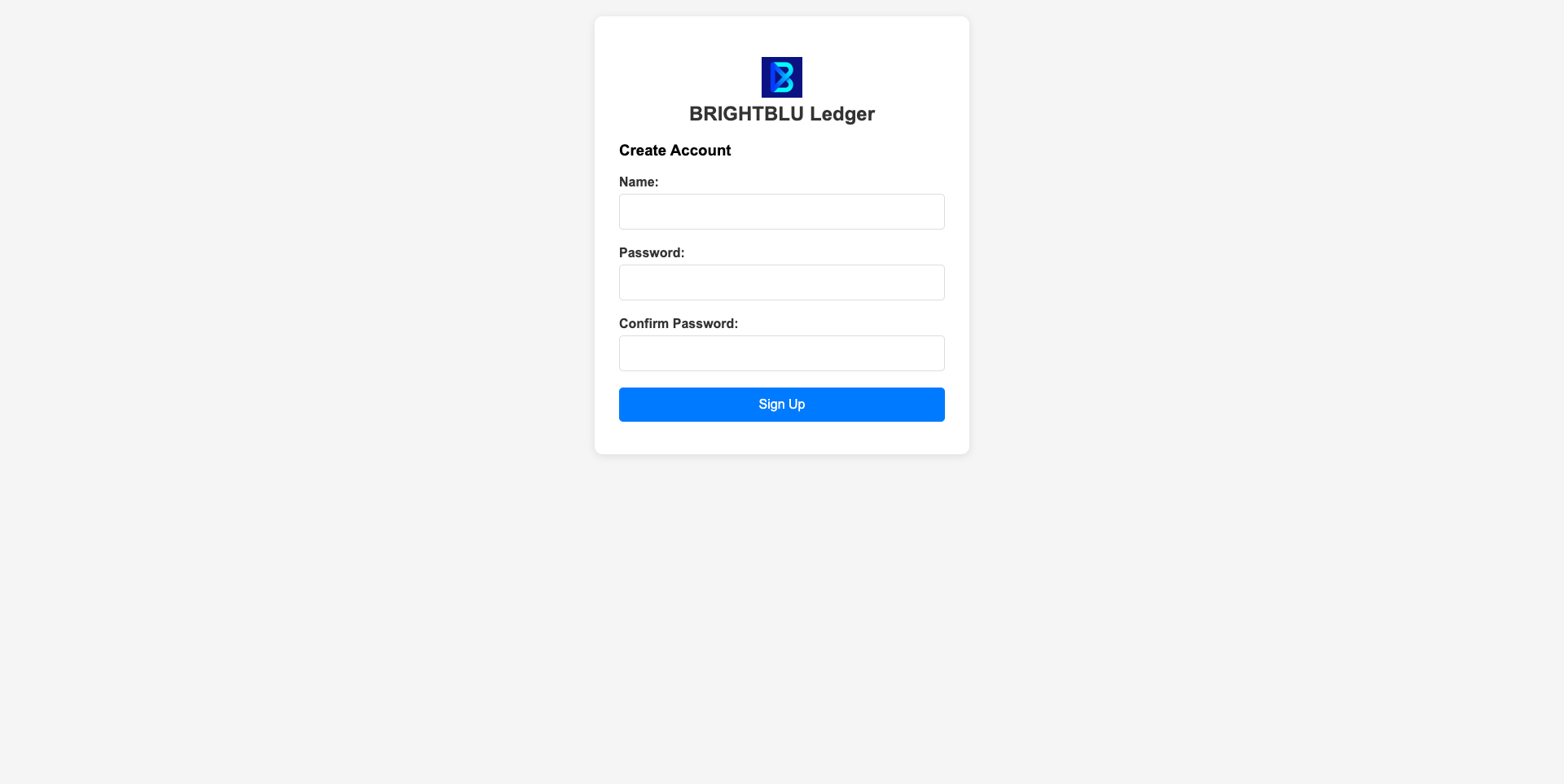
Section titled “Create an account (first time)”The first time you open it, create a local login — a name and a password:
Sign in
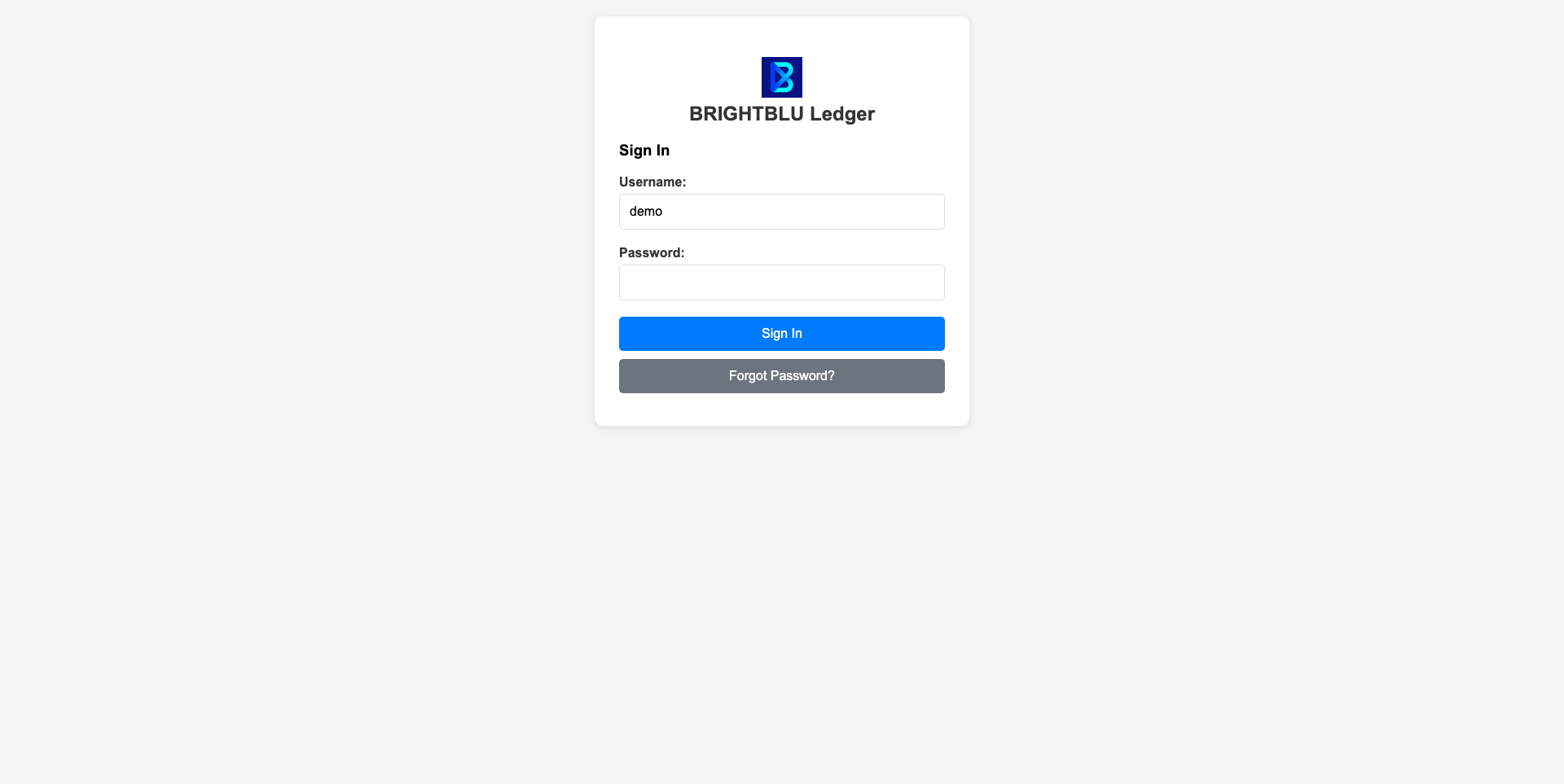
Section titled “Sign in”After that, sign in with your name and password:
Forgot your password?
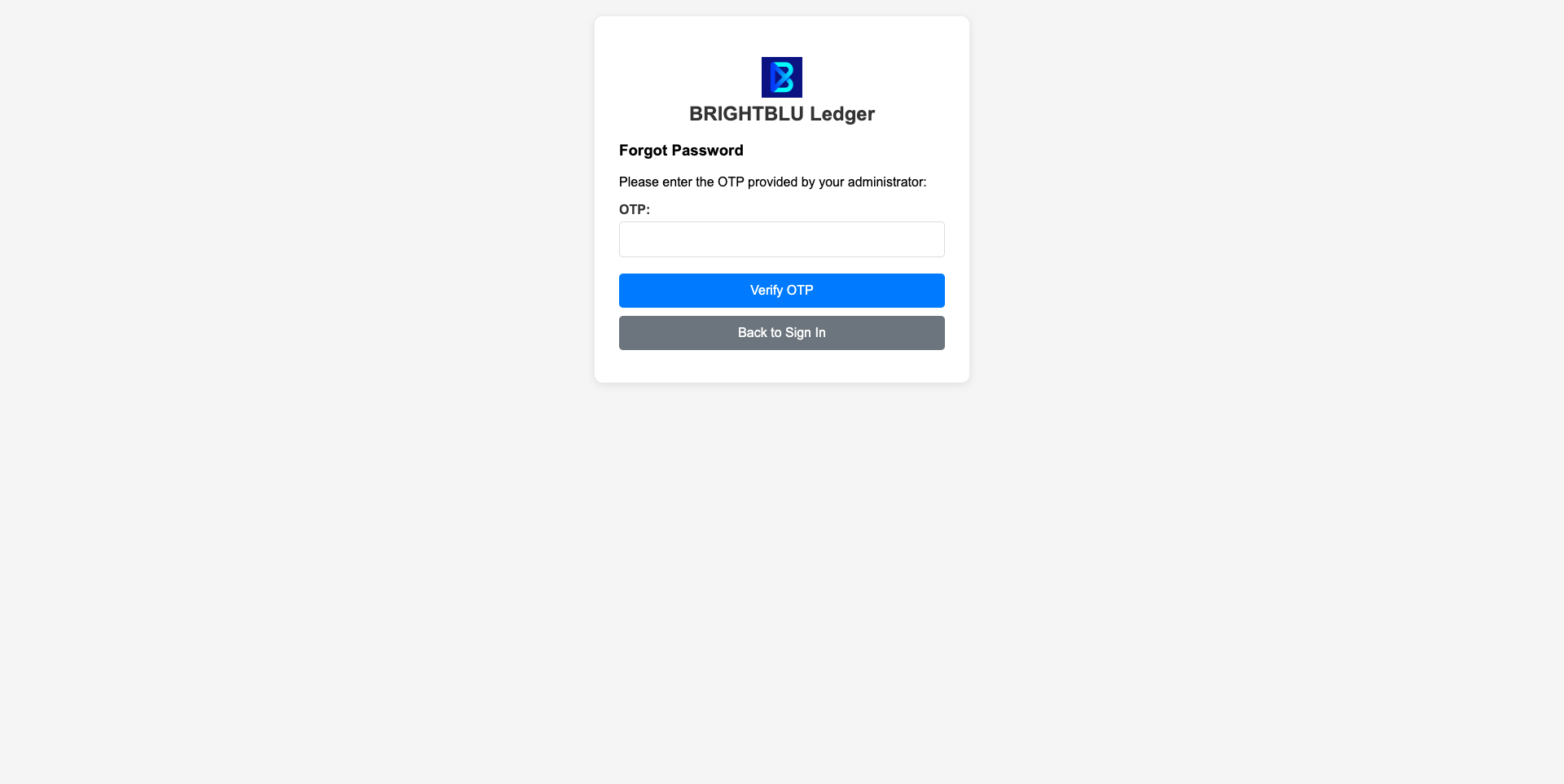
Section titled “Forgot your password?”If you’re locked out, tap Forgot Password? and enter the one-time code (OTP) provided by your BrightBlu administrator:
Installers can also open the same ledger from the charger’s Maintenance Page.
What you can do
Section titled “What you can do”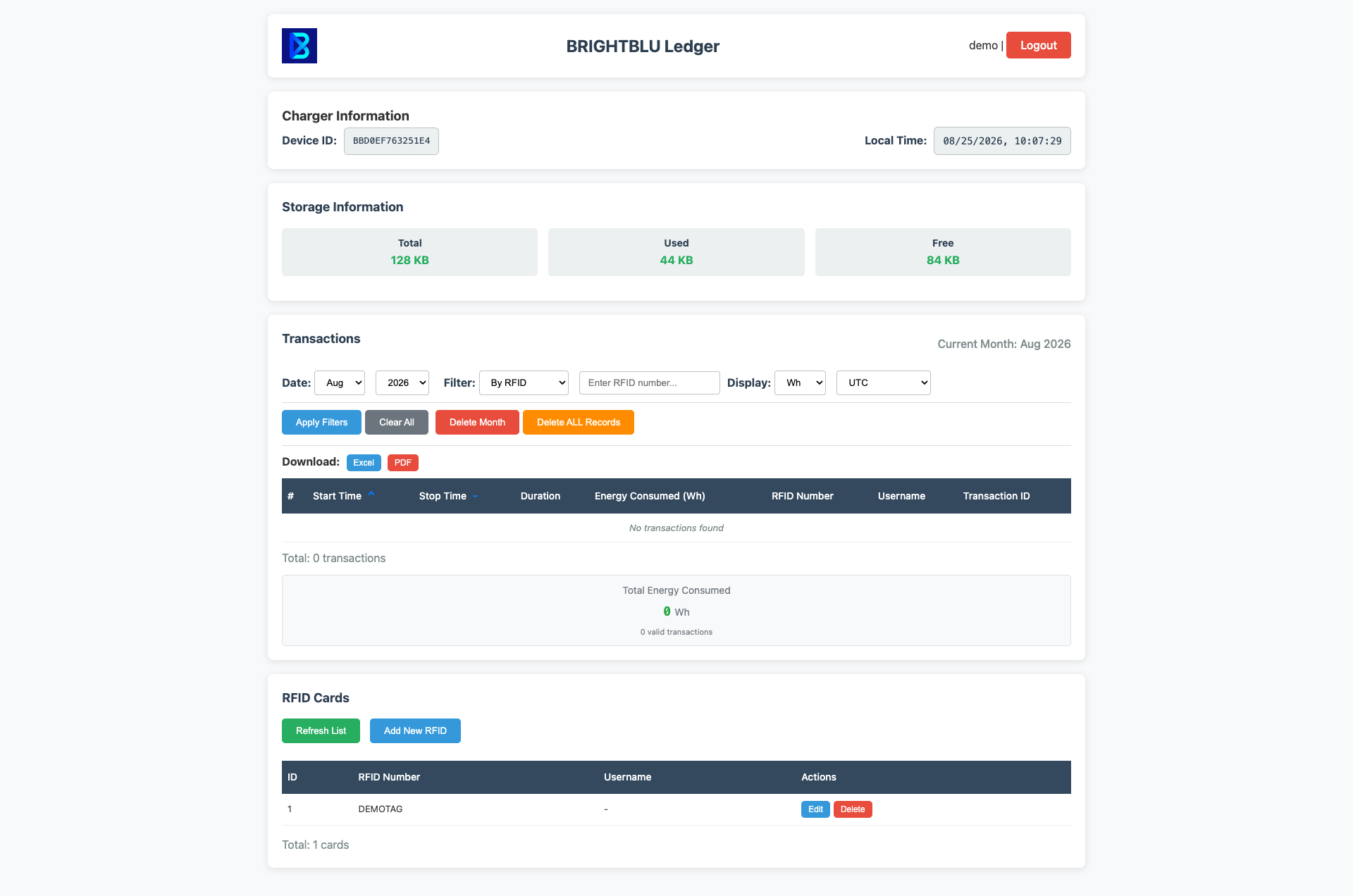
- Session history — every charging session with its start and stop time, duration, energy (switchable between kWh and Wh), the RFID card used, the user the card belongs to, and the transaction ID.
- Filter — view the current month or any past month, and narrow by RFID card or user.
- Export — download the filtered list as CSV or PDF, each with an energy-consumed total, for your own records.
- RFID cards — list, add, name and delete cards, including a tap-to-scan mode: start a scan, then present a card to the reader to capture it automatically.
- Housekeeping — see on-device storage usage and set the timezone.